Difference between revisions of "Create user waypoints"
Jump to navigation
Jump to search


(Marked this version for translation) |
|||
| Line 11: | Line 11: | ||
<!--T:3--> | <!--T:3--> | ||
| − | - Directly on the «moving map» by pressing and holding | + | - Directly on the «moving map» by pressing and holding the desired location of the map for 2 seconds. |
<!--T:4--> | <!--T:4--> | ||
| Line 31: | Line 31: | ||
<!--T:6--> | <!--T:6--> | ||
| − | Once you have created your waypoint, it should appear on the map. | + | Once you have created your waypoint, it should appear on the map. See example below. |
<br/> | <br/> | ||
Latest revision as of 18:19, 14 October 2015

A «user waypoint» can be created as follows:
- Directly on the «moving map» by pressing and holding the desired location of the map for 2 seconds.
- From the «Custom waypoint Editor» under Tools menu.

Once you have created your waypoint, it should appear on the map. See example below.


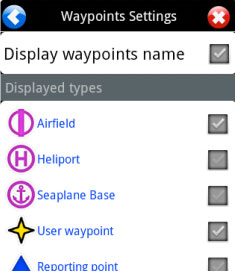
If your waypoint does NOT appear on the map, then check that the type of waypoint you created is selected in «Map Options».

Back to index.
