Difference between revisions of "Install updates/de"
Jump to navigation
Jump to search
(Created page with "Updates installieren") |
(Created page with "---- Zurück zu <u>Index</u> <br />") |
||
| (2 intermediate revisions by the same user not shown) | |||
| Line 5: | Line 5: | ||
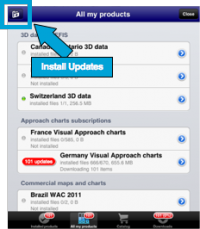
| − | + | Jedes Mal, wenn es ein Update für eine Karte, ein Chart oder 3D-Daten gibt, erscheint ein rotes Symbol, wie auf dem Screenshot abgebildet. Das rote Symbol erscheint sowohl auf der unteren Leiste des Map-Stores sowie neben dem Produkt. | |
| − | + | Der Grund für ein Update kann sein:
| |
| − | * | + | *Ein Chart Update, das Teil Ihres Abonnements ist;
|
| − | * | + | *Wir haben ein Problem mit dem Chart / den Daten gefunden und haben eine neue Version freigegeben. |
<br /> | <br /> | ||
| − | === | + | === Wegpunkte und Lufträume === |
| − | + | Um häufigere Updates von den Wegpunkt- und Luftraum Datenbanken zu erhalten, sollten Sie wie folgt vorgehen: | |
| − | # | + | # Besuchen Sie [http://services.xample.ch/ Xample Services] |
| − | # | + | # Erstellen Sie ein Benutzerkonto |
| − | # | + | # Öffnen Sie die Addons Seite |
| − | # | + | # Abonnieren Sie kostenlos: |
#* Free waypoints database | #* Free waypoints database | ||
#*
Free airspaces database | #*
Free airspaces database | ||
<br /> | <br /> | ||
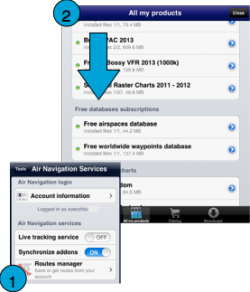
| − | + | Dann auf Ihrem iPad / iPhone:[[File:MapStore_5.png|right|caption|250px]] | |
| − | # | + | # Melden Sie sich mit Ihrem Konto unter «Tools» - «Air Navigation Services»
- «Air Navigation Login» an. |
| − | # | + | # Stellen Sie sicher, dass die Option «Synchronize addons» aktiviert ist. |
| − | # | + | # Wählen Sie «All my products» aus |
| − | # | + | # Laden Sie die kostenlose Datenbank-Dateien herunter.
|
<br /> | <br /> | ||
<youtube>bPKtGX-5JVc</youtube> | <youtube>bPKtGX-5JVc</youtube> | ||
---- | ---- | ||
| − | + | Zurück zu <u>[[Air Navigation iOS/de|Index]]</u> | |
<br /> | <br /> | ||
Latest revision as of 18:26, 1 December 2015

Jedes Mal, wenn es ein Update für eine Karte, ein Chart oder 3D-Daten gibt, erscheint ein rotes Symbol, wie auf dem Screenshot abgebildet. Das rote Symbol erscheint sowohl auf der unteren Leiste des Map-Stores sowie neben dem Produkt.
Der Grund für ein Update kann sein:
- Ein Chart Update, das Teil Ihres Abonnements ist;
- Wir haben ein Problem mit dem Chart / den Daten gefunden und haben eine neue Version freigegeben.
Wegpunkte und Lufträume
Um häufigere Updates von den Wegpunkt- und Luftraum Datenbanken zu erhalten, sollten Sie wie folgt vorgehen:
- Besuchen Sie Xample Services
- Erstellen Sie ein Benutzerkonto
- Öffnen Sie die Addons Seite
- Abonnieren Sie kostenlos:
- Free waypoints database
- Free airspaces database
Dann auf Ihrem iPad / iPhone:

- Melden Sie sich mit Ihrem Konto unter «Tools» - «Air Navigation Services» - «Air Navigation Login» an.
- Stellen Sie sicher, dass die Option «Synchronize addons» aktiviert ist.
- Wählen Sie «All my products» aus
- Laden Sie die kostenlose Datenbank-Dateien herunter.
Zurück zu Index
