Difference between revisions of "Purchase/install charts"
Jump to navigation
Jump to search

(Created page with "---- leyenda|rightIn order to install purchases made in the Addons page, you will proceed as follows: <br/> * Run Air Nav Pro on your iPad/iPhone; <br/> *...") |
(Marked this version for translation) |
||
| (4 intermediate revisions by the same user not shown) | |||
| Line 1: | Line 1: | ||
| + | <languages /> | ||
| + | <translate> | ||
| + | <!--T:1--> | ||
| + | <br /> | ||
---- | ---- | ||
[[File:install.jpg|leyenda|right]]In order to install purchases made in the Addons page, you will proceed as follows: | [[File:install.jpg|leyenda|right]]In order to install purchases made in the Addons page, you will proceed as follows: | ||
<br/> | <br/> | ||
* Run Air Nav Pro on your iPad/iPhone; | * Run Air Nav Pro on your iPad/iPhone; | ||
| − | |||
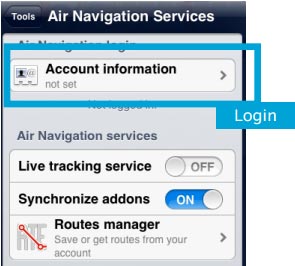
* '''Login''' with your User Account info under «Air Navigation Services» panel; | * '''Login''' with your User Account info under «Air Navigation Services» panel; | ||
| − | |||
* Make sure to have the option '''«Synchronize addons»''' enabled; | * Make sure to have the option '''«Synchronize addons»''' enabled; | ||
| − | |||
* Open the «Map Store» module and go to the '''«All my products»''' section. | * Open the «Map Store» module and go to the '''«All my products»''' section. | ||
| − | |||
* Wait until all your purchases are synchronized. | * Wait until all your purchases are synchronized. | ||
| − | |||
* Press on the product name and install it. | * Press on the product name and install it. | ||
| − | [[File:install2.jpg|leyenda|left|290px]]< | + | <!--T:2--> |
| − | + | [[File:install2.jpg|leyenda|left|290px]]<br/> | |
| − | < | + | <br/><u>'''Note 1:'''</u> the same procedure will apply for when having to restore purchases on a second device. |
| − | + | <br/> | |
| − | + | <br/> | |
| − | + | <br/> | |
| − | + | <br/> | |
| + | <br/> | ||
| + | [[File:install3.jpg|right|border]] | ||
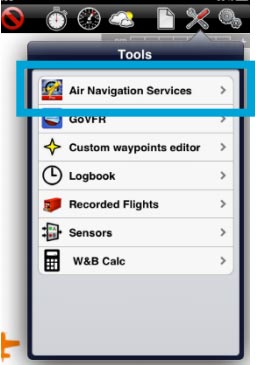
| + | <br/><u>'''Note 2:'''</u> Account information will be found under '''Tools - Air Navigation services.''' | ||
<br /> | <br /> | ||
<br /> | <br /> | ||
| Line 29: | Line 31: | ||
<br /> | <br /> | ||
<br /> | <br /> | ||
| + | |||
| + | <!--T:3--> | ||
<br /> | <br /> | ||
| − | |||
| − | |||
| − | |||
<br /> | <br /> | ||
<br /> | <br /> | ||
| Line 41: | Line 42: | ||
<br /> | <br /> | ||
Back to <u>[[Air Navigation iOS|index]]</u> | Back to <u>[[Air Navigation iOS|index]]</u> | ||
| + | <br /> | ||
| + | </translate> | ||
Latest revision as of 20:12, 13 October 2015

In order to install purchases made in the Addons page, you will proceed as follows:
- Run Air Nav Pro on your iPad/iPhone;
- Login with your User Account info under «Air Navigation Services» panel;
- Make sure to have the option «Synchronize addons» enabled;
- Open the «Map Store» module and go to the «All my products» section.
- Wait until all your purchases are synchronized.
- Press on the product name and install it.

Note 1: the same procedure will apply for when having to restore purchases on a second device.

Note 2: Account information will be found under Tools - Air Navigation services.
Back to index
