Difference between revisions of "Translations:Route planning/2/es"

From Air Navigation User Manuals
Jump to navigation Jump to search
(Created page with "caption|left Por defecto, el mapa móvil está en Flight mode (modo de vuelo). Es posible cambiarlo a '''Edit mode''' (modo de edición) en cualquier mo...")
 
 
Line 1: Line 1:
−
[[File:routeplan.jpg|caption|left]] Por defecto, el mapa móvil está en Flight mode (modo de vuelo). Es posible cambiarlo a '''Edit mode''' (modo de edición) en cualquier momento, con el fin de crear o enmendar una ruta presionando el botón '''EDIT''', localizado en la <u>[[Buttons in the toolbar|barra de herramientas]]</u>.
+
[[File:routeplan.jpg|caption|left]] Por defecto, el mapa móvil está en Flight mode (modo de vuelo). Es posible cambiarlo a '''Edit mode''' (modo de edición) en cualquier momento, con el fin de crear o enmendar una ruta presionando el botón '''EDIT''', localizado en la <u>[[Buttons in the toolbar/es|barra de herramientas]]</u>.
 
<br />
 
<br />
 
[[File:editmode.jpg]]
 
[[File:editmode.jpg]]

Latest revision as of 16:26, 6 November 2015

Information about message (contribute)
This message has no documentation. If you know where or how this message is used, you can help other translators by adding documentation to this message.
Message definition (Route planning)
[[File:routeplan.jpg|caption|left]] By default, the moving map is in «Flight mode». You can toggle the moving map from «Flight mode» to '''«EDIT MODE»''' at any time to create or amend a route by pressing on the «Edit» button in the <u>[[Buttons in the toolbar|Toolbar.]]</u>
<br/>
[[File:editmode.jpg]]
----
To create a route:
* Toggle to «edit mode», a yellow-and-black striped bar should [[File:routeandroid.jpg|caption|right]]appear at the top of the moving map. A search field will also appear on top of the «Route module».
* To '''Add waypoints''' to your route, press on waypoints of your choice on the moving map. In the waypoint popup, press on the '''«add»''' option. A yellow star should appear on the moving map and your waypoint should be in the «Route» list.
* Alternatively, you can input one or more waypoint identifiers in the '''«search»''' field on top of the «Route module» and press on “search”. Multiple identifiers must be separated by a space:
<br/>
[[File:route_2.jpg]]
[[File:route_3.jpg|caption|right]]
In edit mode it is also possible to '''remove waypoints''' from the list in the «Route module». Alternatively, you can remove a waypoint by pressing on the map and choose the «remove» option.
Translation[[File:routeplan.jpg|caption|left]] Por defecto, el mapa móvil está en Flight mode (modo de vuelo). Es posible cambiarlo a '''Edit mode''' (modo de edición) en cualquier momento, con el fin de crear o enmendar una ruta presionando el botón '''EDIT''', localizado en la <u>[[Buttons in the toolbar/es|barra de herramientas]]</u>.
<br />
[[File:editmode.jpg]]
----
Para crear una ruta:
* Vaya a «edit mode», una barra amarilla y negra a rayas deberá [[File:routeandroid.jpg|caption|right]]aparecer en la parte superior del mapa móvil. Un campo de búsqueda también aparecerá en la parte superior del módulo «Route».
* Para '''agregar waypoints''', presione sobre waypoints de su elección en el mapa móvil. Aparecerá entonces una ventana emergente en la cual tendrá que presionar sobre el botón '''Add'''. Una estrella amarilla debería ser vista ahora en el mapa móvil y su waypoint debería incluirse en la lista de “Route”.
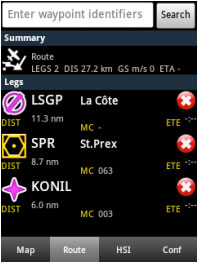
* Alternativamente, se pueden entrar uno o varios identificadores de waypoints en el campo de '''búsqueda''' del módulo “Route” y presionar '''Search'''. Identificadores
múltiples tendrán que estar separados por un espacio:
<br />
[[File:route_2.jpg]]
[[File:route_3.jpg|caption|right]]
En el modo edición también es posible '''reordenar''' y '''remover''' waypoints de la lista en el «Route module». Alternativamente, se puede remover un waypoint presionando en el mapa y eligiendo el botón «remove».
caption

Por defecto, el mapa móvil está en Flight mode (modo de vuelo). Es posible cambiarlo a Edit mode (modo de edición) en cualquier momento, con el fin de crear o enmendar una ruta presionando el botón EDIT, localizado en la barra de herramientas.


Editmode.jpg


Para crear una ruta:

  • Vaya a «edit mode», una barra amarilla y negra a rayas deberá
    caption
    aparecer en la parte superior del mapa móvil. Un campo de búsqueda también aparecerá en la parte superior del módulo «Route».
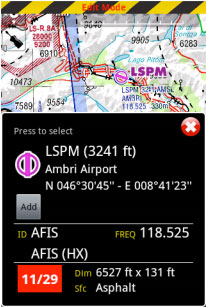
  • Para agregar waypoints, presione sobre waypoints de su elección en el mapa móvil. Aparecerá entonces una ventana emergente en la cual tendrá que presionar sobre el botón Add. Una estrella amarilla debería ser vista ahora en el mapa móvil y su waypoint debería incluirse en la lista de “Route”.
  • Alternativamente, se pueden entrar uno o varios identificadores de waypoints en el campo de búsqueda del módulo “Route” y presionar Search. Identificadores

múltiples tendrán que estar separados por un espacio:
Route 2.jpg

caption

En el modo edición también es posible reordenar y remover waypoints de la lista en el «Route module». Alternativamente, se puede remover un waypoint presionando en el mapa y eligiendo el botón «remove».