Difference between revisions of "Install updates/de"
Jump to navigation
Jump to search
(Created page with "Updates installieren") |
(Created page with "Jedes Mal, wenn es ein Update für eine Karte, ein Chart oder 3D-Daten gibt, erscheint ein rotes Symbol, wie auf dem Screenshot abgebildet. Das rote Symbol erscheint sowohl au...") |
||
| Line 5: | Line 5: | ||
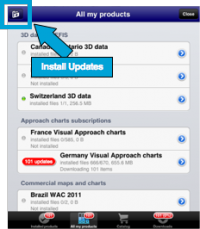
| − | + | Jedes Mal, wenn es ein Update für eine Karte, ein Chart oder 3D-Daten gibt, erscheint ein rotes Symbol, wie auf dem Screenshot abgebildet. Das rote Symbol erscheint sowohl auf der unteren Leiste des Map-Stores sowie neben dem Produkt. | |
The red symbol will appear on both the bottom bar of the Map Store module and next to the product.
The reason for an update may be:
|
The red symbol will appear on both the bottom bar of the Map Store module and next to the product.
The reason for an update may be:
| ||
Revision as of 18:20, 1 December 2015

Jedes Mal, wenn es ein Update für eine Karte, ein Chart oder 3D-Daten gibt, erscheint ein rotes Symbol, wie auf dem Screenshot abgebildet. Das rote Symbol erscheint sowohl auf der unteren Leiste des Map-Stores sowie neben dem Produkt.
The red symbol will appear on both the bottom bar of the Map Store module and next to the product. The reason for an update may be:
- A chart update that is part of your subscription is available;
- We found an issue with the chart/data and we released a fixed version.
Waypoints and Airspaces
In order to get more frequent updates from the waypoints and airspaces databases, you should proceed as follows:
- Go to Xample Services
- Create a User Account
- Go to the Addons page
- SUBSCRIBE to:
- Free waypoints database
- Free airspaces database
Then, on your iPad/iPhone:

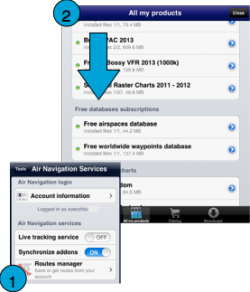
- Login with your User Account info under «Air Navigation Services» (1)
- Make sure to have the option «Synchronize addons» enabled
- Go to «All my products»
- Download the Free Databases files. (2)
Back to index
