Difference between revisions of "Import/Export GPX files (Routes)"
Jump to navigation
Jump to search

(Marked this version for translation) |
|||
| Line 1: | Line 1: | ||
<languages /> | <languages /> | ||
<translate> | <translate> | ||
| + | <!--T:1--> | ||
<br /> | <br /> | ||
---- | ---- | ||
A '''Route in GPX format''' can be imported or exported from Air Navigation Pro. | A '''Route in GPX format''' can be imported or exported from Air Navigation Pro. | ||
| + | <!--T:2--> | ||
[[File:gpx.jpg|caption|left]] In order to '''Export a Route''', you should press on the upper-right button located in the «Route Module» panel, then select the option '''“Send by email”.''' | [[File:gpx.jpg|caption|left]] In order to '''Export a Route''', you should press on the upper-right button located in the «Route Module» panel, then select the option '''“Send by email”.''' | ||
<br/> | <br/> | ||
| Line 10: | Line 12: | ||
<br/> | <br/> | ||
| + | <!--T:3--> | ||
In oder to '''Import a Route''', you have 3 alternatives: | In oder to '''Import a Route''', you have 3 alternatives: | ||
* Copy the GPX files directly into the folder advised by the button “Show GPX folder”. This folder will have all the Routes appearing in Air Nav Pro. | * Copy the GPX files directly into the folder advised by the button “Show GPX folder”. This folder will have all the Routes appearing in Air Nav Pro. | ||
| Line 22: | Line 25: | ||
| + | <!--T:4--> | ||
<u>'''Note:'''</u> As an alternative, you can send a GPX file (Route) to your Email box and then open it directly on your device using the feature “Open with”. | <u>'''Note:'''</u> As an alternative, you can send a GPX file (Route) to your Email box and then open it directly on your device using the feature “Open with”. | ||
| + | <!--T:5--> | ||
---- | ---- | ||
<br /> | <br /> | ||
Revision as of 19:39, 13 October 2015
A Route in GPX format can be imported or exported from Air Navigation Pro.

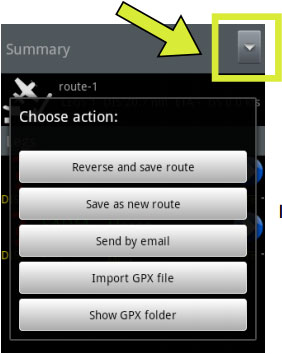
In order to Export a Route, you should press on the upper-right button located in the «Route Module» panel, then select the option “Send by email”.
 You must first have an Email account configured on your device.
In oder to Import a Route, you have 3 alternatives:
- Copy the GPX files directly into the folder advised by the button “Show GPX folder”. This folder will have all the Routes appearing in Air Nav Pro.
- Select “Import GPX file”, then you search for the GPX file and open it.
- Use the “Open with” feature from outside Air Nav Pro.


Note: As an alternative, you can send a GPX file (Route) to your Email box and then open it directly on your device using the feature “Open with”.
Back to index.
