Difference between revisions of "Restore purchased maps and charts/fr"
Jump to navigation
Jump to search

(Created page with "Pour réinstaller un produit déjà acheté, il faut le sélectionner depuis cette section et confirmer son right|caption|200pxinstallation, ou encore,...") |
(Updating to match new version of source page) |
||
| Line 2: | Line 2: | ||
<br /> | <br /> | ||
---- | ---- | ||
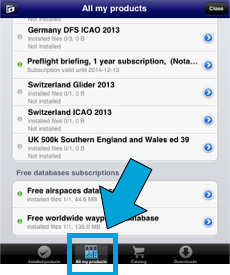
| − | [[File:MapStore_3.png|left|caption|250px]] | + | [[File:MapStore_3.png|left|caption|250px]]The button labeled '''«All my products»''', reachable from the bottom bar of the module, will display '''all the maps, charts and 3D data acquired by the user''' iTunes account from the very first time, no matter if they were installed or not.
|
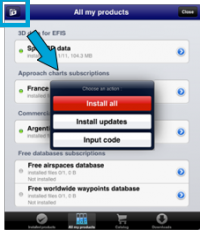
Pour réinstaller un produit déjà acheté, il faut le sélectionner depuis cette section et confirmer son [[File:MapStore_6.png|right|caption|200px]]installation, ou encore, vous pouvez installer tous les produits de la section en utilisant le bouton en haut à gauche (voir l’image à droite). | Pour réinstaller un produit déjà acheté, il faut le sélectionner depuis cette section et confirmer son [[File:MapStore_6.png|right|caption|200px]]installation, ou encore, vous pouvez installer tous les produits de la section en utilisant le bouton en haut à gauche (voir l’image à droite). | ||
Revision as of 20:49, 16 October 2015

The button labeled «All my products», reachable from the bottom bar of the module, will display all the maps, charts and 3D data acquired by the user iTunes account from the very first time, no matter if they were installed or not. Pour réinstaller un produit déjà acheté, il faut le sélectionner depuis cette section et confirmer son

installation, ou encore, vous pouvez installer tous les produits de la section en utilisant le bouton en haut à gauche (voir l’image à droite).

Il faut toujours utilisé le même compte d’iTunes.
L’option Input code sera encore utilisé au cas où le produit qui a été acheté possède un code de licence.
Retourner à l'index
