Difference between revisions of "Create custom waypoint"
(Marked this version for translation) |
|||
| Line 4: | Line 4: | ||
---- | ---- | ||
There are two ways of creating custom waypoints: | There are two ways of creating custom waypoints: | ||
| − | * By ''' | + | * By '''pressing your finger three seconds''' on a specific point [[File:directwpp.jpg|caption|right]]in the map. Tap in '''"Insert in database"''' and enter the parameters asked by the app. If you select Aerodrome under "Type" you will be able to enter runways and frequencies information.<br/> |
: The created waypoint will appear on the map and under "Tools - Custom Waypoints editor". | : The created waypoint will appear on the map and under "Tools - Custom Waypoints editor". | ||
* By adding the exact coordinates or using your current position. | * By adding the exact coordinates or using your current position. | ||
| Line 66: | Line 66: | ||
<!--T:7--> | <!--T:7--> | ||
| − | In order to do this, you have to connect the device to a computer and go | + | In order to do this, you have to connect the device to a computer and go to iTunes.<br/> |
Select the device on the upper bar and then select "Apps" from the menu on the left. | Select the device on the upper bar and then select "Apps" from the menu on the left. | ||
| − | At the | + | At the bottom of this page you will find the "File Sharing" menu. Select Air Navigation Pro from there and save the "Backup.sql" file.<br/> |
<!--T:8--> | <!--T:8--> | ||
| Line 74: | Line 74: | ||
<!--T:9--> | <!--T:9--> | ||
| − | Move this file to the new device in the same way through the "File Sharing" option of iTunes. Then, select | + | Move this file to the new device in the same way through the "File Sharing" option of iTunes. Then, select the option '''"Restore Waypoints"''' in the new device.<br/> |
[[File:warningwppp.jpg]] | [[File:warningwppp.jpg]] | ||
---- | ---- | ||
Revision as of 18:12, 19 October 2015
There are two ways of creating custom waypoints:
- By pressing your finger three seconds on a specific point in the map. Tap in "Insert in database" and enter the parameters asked by the app. If you select Aerodrome under "Type" you will be able to enter runways and frequencies information.
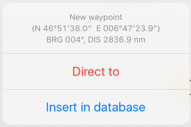

- The created waypoint will appear on the map and under "Tools - Custom Waypoints editor".
- By adding the exact coordinates or using your current position.

Going to "Tools - Custom waypoint editor".
Note: there are two ways to delete a custom waypoint:
- Swiping from right to left over the waypoint's name will make the "Delete" button appear. Tap it once and it's done.


- Under Custom waypoints editor tap "Edit" at the upper right corner and choose "Remove waypoints".


From the Edit mode you will also be able to back-up your

waypoints and restore them or copy them to another device.

In order to do this, you have to connect the device to a computer and go to iTunes.
Select the device on the upper bar and then select "Apps" from the menu on the left.
At the bottom of this page you will find the "File Sharing" menu. Select Air Navigation Pro from there and save the "Backup.sql" file.

Move this file to the new device in the same way through the "File Sharing" option of iTunes. Then, select the option "Restore Waypoints" in the new device.

Back to index.
