Difference between revisions of "Create a new mission"
Jump to navigation
Jump to search
| Line 13: | Line 13: | ||
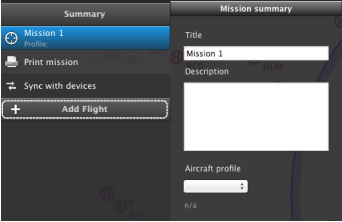
[[File:mac4.jpg|left|caption]]From the Mission TAB you will write the <span style="color:blue">name of the mission</span> and choose the <span style="color:blue">Aircraft profile</span> once it is created. | [[File:mac4.jpg|left|caption]]From the Mission TAB you will write the <span style="color:blue">name of the mission</span> and choose the <span style="color:blue">Aircraft profile</span> once it is created. | ||
<br/> | <br/> | ||
| − | You | + | You can also create one or more flights clicking on the “Add Flight” button. |
---- | ---- | ||
<br/> | <br/> | ||
Back to <u>[[Air Navigation Desktop|index]]</u> | Back to <u>[[Air Navigation Desktop|index]]</u> | ||
Revision as of 16:24, 1 October 2015
When you first launch Air Navigation Desktop, you will be asked to save a new mission in a folder of your Mac computer.


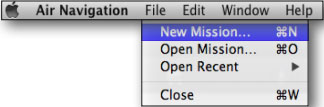
Shall you wish to create a new one by yourself, you should do it from the «File» top menu.

From the Mission TAB you will write the name of the mission and choose the Aircraft profile once it is created.
You can also create one or more flights clicking on the “Add Flight” button.
Back to index
