Difference between revisions of "Synchronize routes with your iOS device/es"
Jump to navigation
Jump to search

(Created page with "Sincronizar rutas con un dispositivo iOS") |
(Created page with "<br /> ---- Las rutas creadas en Air Navigation Desktop pueden ser fácilmente copiadas en un iPad o iPhone siguiendo los siguientes pasos: * Iniciar sesión con la cuenta de...") |
||
| Line 2: | Line 2: | ||
<br /> | <br /> | ||
---- | ---- | ||
| − | + | Las rutas creadas en Air Navigation Desktop pueden ser fácilmente copiadas en un iPad o iPhone siguiendo los siguientes pasos: | |
| − | * | + | * Iniciar sesión con la cuenta de Xample Services en Air Navigation Desktop '''y también''' en el dispositivo iOS. |
| − | <br/> | + | <br /> |
[[File:routes_mac.jpg|left]] | [[File:routes_mac.jpg|left]] | ||
[[File:routes_mac2.jpg|left]] | [[File:routes_mac2.jpg|left]] | ||
Revision as of 20:29, 2 November 2015
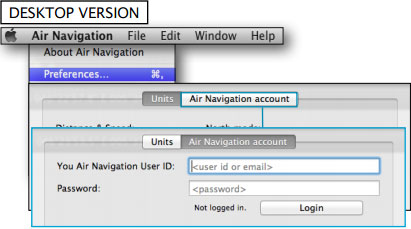
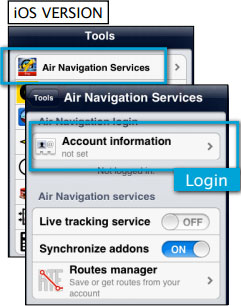
Las rutas creadas en Air Navigation Desktop pueden ser fácilmente copiadas en un iPad o iPhone siguiendo los siguientes pasos:
- Iniciar sesión con la cuenta de Xample Services en Air Navigation Desktop y también en el dispositivo iOS.


 Both the Mac computer and the iOS device must be
connected to the same wifi network.
- From the Mission TAB, go to «Sync with devices»
- Select the device and click on «Synchronize» button

All the routes in the mission will be synchronized with the iOS device.
Example: if you have a mission with 3 different flights, all 3 flights will be transferred to your iPad/iPhone.
Routes stored in the Library TAB will NOT be transferred.
Back to index
