Difference between revisions of "Synchronize routes with your iOS device/de"
Jump to navigation
Jump to search

(Created page with "Routen mit Ihrem iOS-Gerät synchronisieren") |
(Created page with "<br /> ---- Die erstellten Routen in Air Nav-Desktop können einfach auf Ihr iPad oder iPhone mit folgenden Schritten kopiert werden: * Melden Sie sich mit Ihrem Xample Servic...") |
||
| Line 2: | Line 2: | ||
<br /> | <br /> | ||
---- | ---- | ||
| − | + | Die erstellten Routen in Air Nav-Desktop können einfach auf Ihr iPad oder iPhone mit folgenden Schritten kopiert werden: | |
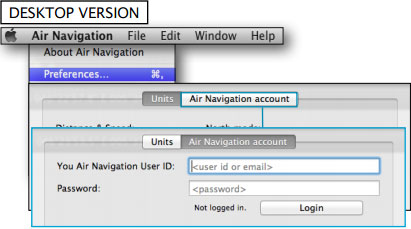
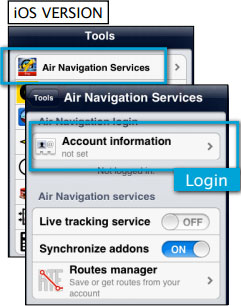
| − | * | + | * Melden Sie sich mit Ihrem Xample Services Konto in Air Nav Desktop '''und auch''' in Ihrem iOS Gerät. |
| − | <br/> | + | <br /> |
[[File:routes_mac.jpg|left]] | [[File:routes_mac.jpg|left]] | ||
[[File:routes_mac2.jpg|left]] | [[File:routes_mac2.jpg|left]] | ||
Revision as of 12:33, 12 November 2015
Die erstellten Routen in Air Nav-Desktop können einfach auf Ihr iPad oder iPhone mit folgenden Schritten kopiert werden:
- Melden Sie sich mit Ihrem Xample Services Konto in Air Nav Desktop und auch in Ihrem iOS Gerät.


 Both the Mac computer and the iOS device must be
connected to the same wifi network.
- From the Mission TAB, go to «Sync with devices»
- Select the device and click on «Synchronize» button

All the routes in the mission will be synchronized with the iOS device.
Example: if you have a mission with 3 different flights, all 3 flights will be transferred to your iPad/iPhone.
Routes stored in the Library TAB will NOT be transferred.
Back to index
