Difference between revisions of "Route planning/pt"
(Created page with "Para '''Reverse''' você deveria pressionar sobre o botão que fica na superior quina direita da tela do «Route module» como é na captura da tela e selecionar.<br /> Você...") |
(Created page with "Quando voltar a «Flight mode», no '''próximo''' waypoint da listagem serão mostrados o '''rumo''' (BRG) e o '''curso magnético''' da localização atual.") |
||
| Line 38: | Line 38: | ||
[[File:routename5.jpg]] | [[File:routename5.jpg]] | ||
| − | + | Quando voltar a «Flight mode», no '''próximo''' waypoint da listagem serão mostrados o '''rumo''' (BRG) e o '''curso magnético''' da localização | |
| + | atual. | ||
---- | ---- | ||
Revision as of 19:57, 26 November 2015
Contents
Versão Android

By default, the moving map is in «Flight mode». You can toggle the moving map from «Flight mode» to «EDIT MODE» at any time to create or amend a route by pressing on the «Edit» button in the Toolbar.

To create a route:
- Toggle to «edit mode», a yellow-and-black striped bar should appear at the top of the moving map. A search field will also appear on top of the «Route module».
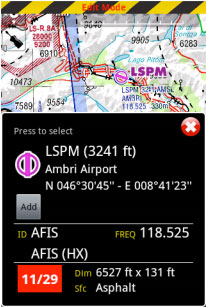
- To Add waypoints to your route, press on waypoints of your choice on the moving map. In the waypoint popup, press on the «add» option. A yellow star should appear on the moving map and your waypoint should be in the «Route» list.
- Alternatively, you can input one or more waypoint identifiers in the «search» field on top of the «Route module» and press on “search”. Multiple identifiers must be separated by a space:


In edit mode it is also possible to remove waypoints from the list in the «Route module». Alternatively, you can remove a waypoint by pressing on the map and choose the «remove» option.
É possível inserir um waypoint pressionando
no vetor magenta (perna) e movendo para uma nova localização do

mapa. Como conseqüência, um waypoint novo será inserido na «Route». Se a localização no mapa não estiver sobre um waypoint existente, um waypoint temporário será criado. No módulo «Route module», você pode pressionar sobre «Summary» na parte superior da listagem para escrever o nome da rota e velocidade cruzeiro. O

nome da rota é utilizada para identificar uma rota na «Routes list» quando estiver salvadas. A informação sobre a Velocidade Cruzeiro será utilizada para exibir o ETA (tempo estimado da chegada) na parte superior da tela.


Quando estiver satisfeito com a sua rota, você pode voltar ao «Flight mode» (modo de vôo), e a rota automaticamente será salvada no «Routes list» (veja a imagem à esquerda).
Na captura da tela que é mostrada na esquerda, você pode observar 3 rotas salvadas a título de exemplo. Selecionando alguma delas deste módulo, Air Navigation a terá como a rota atual no mapa móvel.

Para Reverse você deveria pressionar sobre o botão que fica na superior quina direita da tela do «Route module» como é na captura da tela e selecionar.
Você também tem a opção de salvar a rota atual e
enviá-la por Email. Você também pode importar arquivos GPX.

Quando voltar a «Flight mode», no próximo waypoint da listagem serão mostrados o rumo (BRG) e o curso magnético da localização atual.
iOS version
By default, the moving map is in «flight mode». You can toggle the moving map from «flight mode» to «planning mode» at any time to create or amend a route by pressing the «EDIT» button in the Toolbar.
To start creating a route:

- Toggle to «Edit mode», a yellow and black striped bar should appear at the top of the moving map. A search field will also appear on top of the «Route» module.
- To add waypoints, press on waypoints of your choice on the moving map. In the waypoint popup, press the «add to route» option. A yellow star should now appear on the moving map and your waypoint should be in the «Route» list.
- Alternatively, you can input one or more waypoint identifiers in the search field on top of the «Route» module and press return.
Multiple identifiers must be separated by a space.
Note: to find a waypoint near an airfield, typically VFR report points, you can use the following syntax: W@LSZG (waypoint id@airfield id) then return. This will force Air Navigation to find the closest waypoint from LSZG with the identifier W.
In Edit mode it is also possible to reorder and remove waypoints from the list in the «Route module». Alternatively, you can remove a waypoint by pressing on the map and choose the «remove from route» option. It is possible to insert a waypoint by pressing on the magenta vector (leg) and moving to a new location on the map. As a result a new waypoint will be inserted in the «Route». If the location on the map is not over an existing waypoint, a «temporary» waypoint will be created. You can add this waypoint later to the database if you wish to do so.
 You can create a new waypoint by pressing 2 seconds at its location on the map. A popup will ask if you want to add this point to the database or simply use it as a “temporary” waypoint for the route or direct to.

In the «Route» module, you can press on the «Summary» line at the top of the list to set the route name and wind. The route name is used to identify a particular route in the «Route» list when they are saved. Wind and cruise speed information will be used to display estimated time and heading in «edit mode». In «flight mode» current speed as reported by the GPS will be used to compute estimated time. The button at the top right corner of the window can be used to reverse the route or duplicate it. When you are satisfied with your route, you can toggle back to «flight mode», the route is automatically stored in the «Routes list».
Back to index (Android)
Back to index (iOS)
