Difference between revisions of "Translations:Install Addons/1/en"
Jump to navigation
Jump to search

(Importing a new version from external source) |
(Importing a new version from external source) |
||
| Line 1: | Line 1: | ||
<br /> | <br /> | ||
---- | ---- | ||
| − | [[File:INSTAALL.jpg|caption|right|200px]]Once you have made a purchase through the Addons page, you | + | [[File:INSTAALL.jpg|caption|right|200px]]Once you have made a purchase through the Addons page, you proceed as follows: |
| − | * Run Air | + | * Run Air Navigation Pro on your Tablet/mobile; |
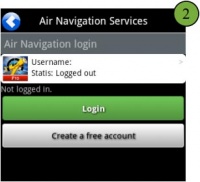
* '''Login''' with your User Account info under «Air Navigation Services» panel; | * '''Login''' with your User Account info under «Air Navigation Services» panel; | ||
<br/> | <br/> | ||
Latest revision as of 20:50, 16 October 2015

Once you have made a purchase through the Addons page, you proceed as follows:
- Run Air Navigation Pro on your Tablet/mobile;
- Login with your User Account info under «Air Navigation Services» panel;

