Difference between revisions of "Restore purchased maps and charts/es"
Jump to navigation
Jump to search

(Updating to match new version of source page) |
|||
| Line 2: | Line 2: | ||
<br /> | <br /> | ||
---- | ---- | ||
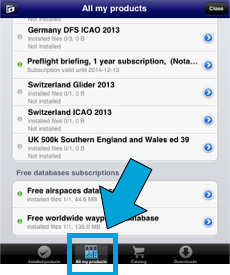
| − | [[File:MapStore_3.png|left|caption|250px]] | + | [[File:MapStore_3.png|left|caption|250px]]El botón «All my products», al cual se accede desde la barra inferior del módulo, mostrará todos los mapas, cartas y datos 3D comprados/descargados por el usuario desde la compra de Air Nav Pro. |
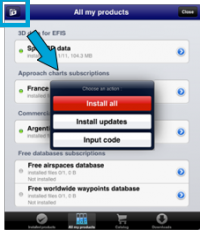
In order to re-install previously acquired maps, charts or 3D data, you can look into this module and press on the [[File:MapStore_6.png|right|caption|200px]]desired one to install it.
You can also choose to install them all by pressing on the upper left corner button (see screenshot on the right). | In order to re-install previously acquired maps, charts or 3D data, you can look into this module and press on the [[File:MapStore_6.png|right|caption|200px]]desired one to install it.
You can also choose to install them all by pressing on the upper left corner button (see screenshot on the right). | ||
Revision as of 15:35, 26 October 2015

El botón «All my products», al cual se accede desde la barra inferior del módulo, mostrará todos los mapas, cartas y datos 3D comprados/descargados por el usuario desde la compra de Air Nav Pro. In order to re-install previously acquired maps, charts or 3D data, you can look into this module and press on the

desired one to install it. You can also choose to install them all by pressing on the upper left corner button (see screenshot on the right).

You should Always use the same iTunes account.
The option Input code is still present for a product that was sold with a license code, such as the German VFR approach charts.
Back to index
