Difference between revisions of "Translations:Create custom waypoint/1/en"

From Air Navigation User Manuals
Jump to navigation Jump to search
(Importing a new version from external source)
 
(Importing a new version from external source)
 
Line 1: Line 1:
 
----
 
----
 
There are two ways of creating custom waypoints:
 
There are two ways of creating custom waypoints:
−
* By '''tapping three seconds''' with your finger in a specific point [[File:directwpp.jpg|caption|right]]in the map. Tap in '''"Insert in database"''' and there, you enter the parameters asked by the app. If you select Aerodrome under "Type" you will be able to enter runways and frequencies information.<br/>
+
* By '''pressing your finger three seconds''' on a specific point [[File:directwpp.jpg|caption|right]]in the map. Tap on '''"Insert in database"''' and enter the parameters asked by the app. If you select Aerodrome under "Type" you will be able to enter runways and frequencies information.<br/>
 
: The created waypoint will appear on the map and under "Tools - Custom Waypoints editor".
 
: The created waypoint will appear on the map and under "Tools - Custom Waypoints editor".
 
* By adding the exact coordinates or using your current position.  
 
* By adding the exact coordinates or using your current position.  
 
[[File:coordinateswp.jpg|left|caption|170px]]Going to "Tools - Custom waypoint editor".
 
[[File:coordinateswp.jpg|left|caption|170px]]Going to "Tools - Custom waypoint editor".

Latest revision as of 17:05, 5 November 2015

Information about message (contribute)
This message has no documentation. If you know where or how this message is used, you can help other translators by adding documentation to this message.
Message definition (Create custom waypoint)
----
There are two ways of creating custom waypoints:
* By '''pressing your finger three seconds''' on a specific point [[File:directwpp.jpg|caption|right]]in the map. Tap on '''"Insert in database"''' and enter the parameters asked by the app. If you select Aerodrome under "Type" you will be able to enter runways and frequencies information.<br/>
: The created waypoint will appear on the map and under "Tools - Custom Waypoints editor".
* By adding the exact coordinates or using your current position. 
[[File:coordinateswp.jpg|left|caption|170px]]Going to "Tools - Custom waypoint editor".
Translation----
There are two ways of creating custom waypoints:
* By '''pressing your finger three seconds''' on a specific point [[File:directwpp.jpg|caption|right]]in the map. Tap on '''"Insert in database"''' and enter the parameters asked by the app. If you select Aerodrome under "Type" you will be able to enter runways and frequencies information.<br/>
: The created waypoint will appear on the map and under "Tools - Custom Waypoints editor".
* By adding the exact coordinates or using your current position. 
[[File:coordinateswp.jpg|left|caption|170px]]Going to "Tools - Custom waypoint editor".

There are two ways of creating custom waypoints:

  • By pressing your finger three seconds on a specific point
    caption
    in the map. Tap on "Insert in database" and enter the parameters asked by the app. If you select Aerodrome under "Type" you will be able to enter runways and frequencies information.
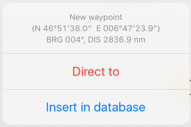
The created waypoint will appear on the map and under "Tools - Custom Waypoints editor".
  • By adding the exact coordinates or using your current position.
caption

Going to "Tools - Custom waypoint editor".