Map Store
Jump to navigation
Jump to search
The Map Store module has been modified to make it more easy to use. It looks like the screenshot shows below and it’s reachable from the Configuration button/tab. It has 4 sections:

- Installed products
- It shows the charts, maps and data that is currently installed in the app.
- All my products
- It shows all the purchased charts, maps and data and the free products downloaded by the user, too. If you reinstall the application or lose a map, here you will get it back. It also allows you to sync the products purchased on the Android version.
- Catalog
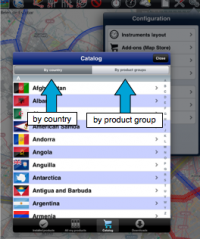
- It is divided into two parts:

- by country: you can choose the country you are interested in and it will show all the charts/maps and data available for that country.
- by product groups: it will show the products by their category.
- Downloads
- It lists current and pending downloads. This module is typically used to monitor download progression of a product. It is possible to reorder/delete the downloads or cancel all by pressing on the Edit button located on the upper left corner.
Back to index
- Downloads / Download queue
- It lists current and pending downloads. This module is typically used to monitor download progression of a product. It is possible to reorder/delete the downloads or cancel all by pressing on the Edit button located on the upper left corner.

Installed products appear in different colours according to the state. In Android the background color changes, in iOS the dot next to the product name:
- White: maps are not installed;
- Green: maps are installed and up to date;
- Orange: new version available for download.


After a map or chart has been installed, you will be able to manage it from the «Map Options» module. Other products such as the Free Elevation data and the Geo-referenced approach charts will not show under «Map Options», but only under the «Installed products» part in the Map Store module.
Back to index (Android)
Back to index (iOS)
