Crear un waypoint del usuario
There are two ways of creating custom waypoints:
- By pressing your finger three seconds on a specific point in the map. Tap on "Insert in database" and enter the parameters asked by the app. If you select Aerodrome under "Type" you will be able to enter runways and frequencies information.
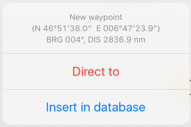

- The created waypoint will appear on the map and under "Tools - Custom Waypoints editor".
- By adding the exact coordinates or using your current position.

Going to "Tools - Custom waypoint editor".
Nota: hay dos formas de borrar un waypoint creado por un usuario:
- Deslizando un dedo de derecha a izquierda sobre el nombre del waypoint provocará que el botón "Eliminar" aparezca.


- Desde el módulo "Waypoints de usuario presionar sobre la opción "Editar" ubicada en la esquina superior derecha y elegir "Eliminar waypoints".


Desde le modo "Editar" también podrá copiar sus

waypoints y restaurarlos, o copiarlos en otro dispositivo.

Para hacer esto, es necesario conectar su dispositivo a una computadora e ir a iTunes.
Seleccione el dispositivo en la barra superior y cliquee sobre "Apps" desde el menú a la izquierda.
Al final de esta página encontrará el menu "File Sharing" menu. Seleccione Air Navigation desde qui y guarde el archivo "Backup.sql".

Move this file to the new device in the same way through the "File Sharing" option of iTunes. Then, select the option "Restore Waypoints" in the new device.

Back to index.
